

Connect an AI client with MCP
Use MCP (Model Context Protocol) to connect an AI client such as Claude, ChatGPT, or Cursor to Operately. After you authorize the client, it can search and work with the goals, projects, tasks, and documents you already have access to.
MCP is separate from API tokens and the CLI. Each MCP connection is tied to one company. To use a different company, connect the client again and choose that company.
How to get there#
Section titled “How to get there#”Open your avatar menu → MCP Connections → Connect a client.
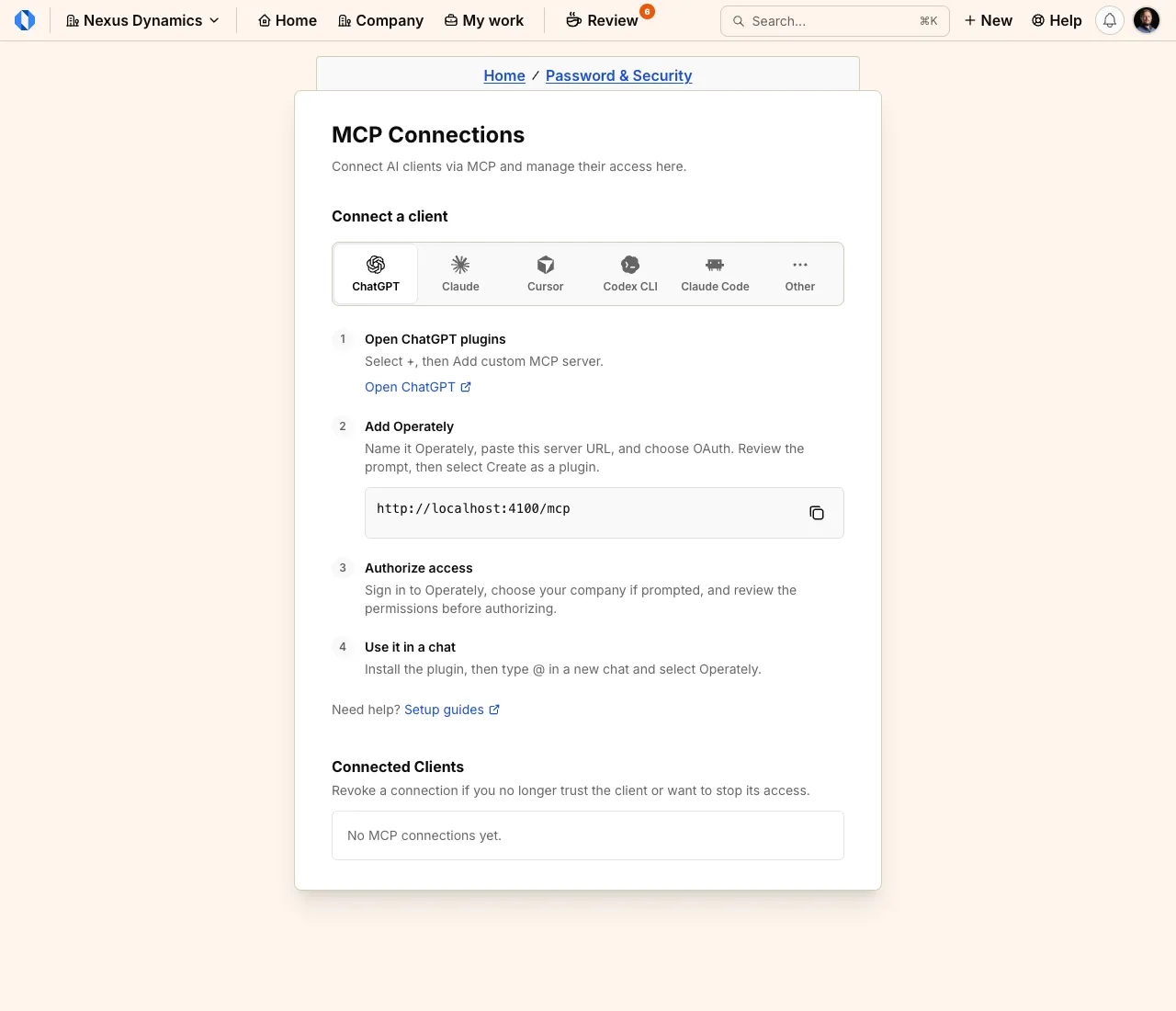
Connect a client#
Section titled “Connect a client#”- Under Connect a client, select your client.
- Follow the setup instructions shown—copy the server URL (see ChatGPT or Claude), or use the provided configuration or commands.
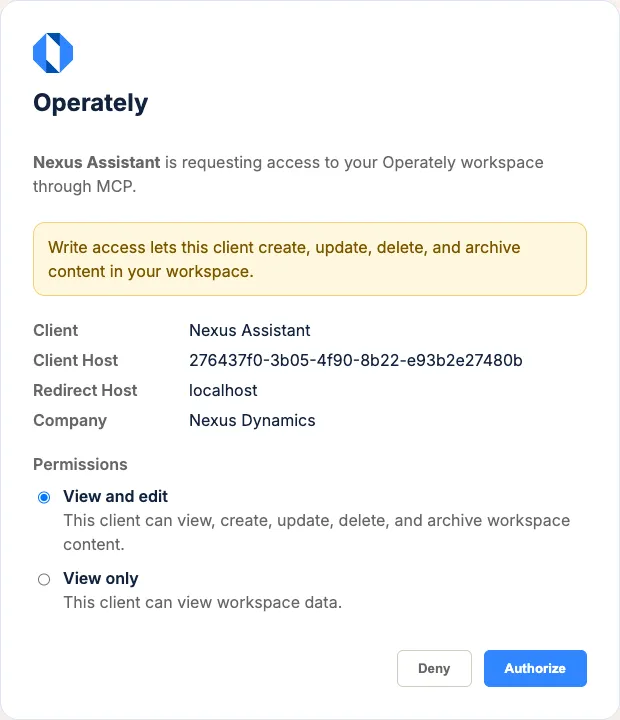
- Sign in to Operately and select the company if prompted.
- Check Client, Company, and Permissions. Select the access you want and click Authorize, or choose Deny to cancel.
For a client that accepts a URL, Other offers Copy server URL. Operately Cloud uses https://app.operately.com/mcp; self-hosted installations use your own instance URL (e.g. https://work.example.com/mcp).
Permissions#
Section titled “Permissions#”View and edit is preselected when a client requests both permissions or leaves them unspecified. Choose View only to restrict the client to reading—your workspace permissions still apply.
Check Connected Clients to see each client’s grant under Access (View only, Edit only, or View and edit).
What you can ask#
Section titled “What you can ask#”- View access: “Which of my tasks are open?”
- Write access: “Log this week’s KPI value as 42 for qualified leads.”
Review connected clients#
Section titled “Review connected clients#”The Connected Clients section lists your active authorizations for the current company. Revoked connections are no longer listed. Revoke a connection if you no longer trust the client or want to stop its access.
Each row shows:
- Client
- Access
- Connected
- Last Used
If you have not authorized any clients yet, the page shows No MCP connections yet.
Revoke a connection#
Section titled “Revoke a connection#”Revoking immediately stops that client’s access. The client must reconnect through OAuth before it can use Operately again.
- Open MCP Connections.
- In the Connected Clients table, open the menu on the client row.
- Click Revoke.
- On the Revoke connection dialog, click Revoke. Click Cancel to keep the connection.
The confirmation asks: Revoke access for [client name]? The client will need to reconnect through OAuth.