
Add Mermaid diagrams
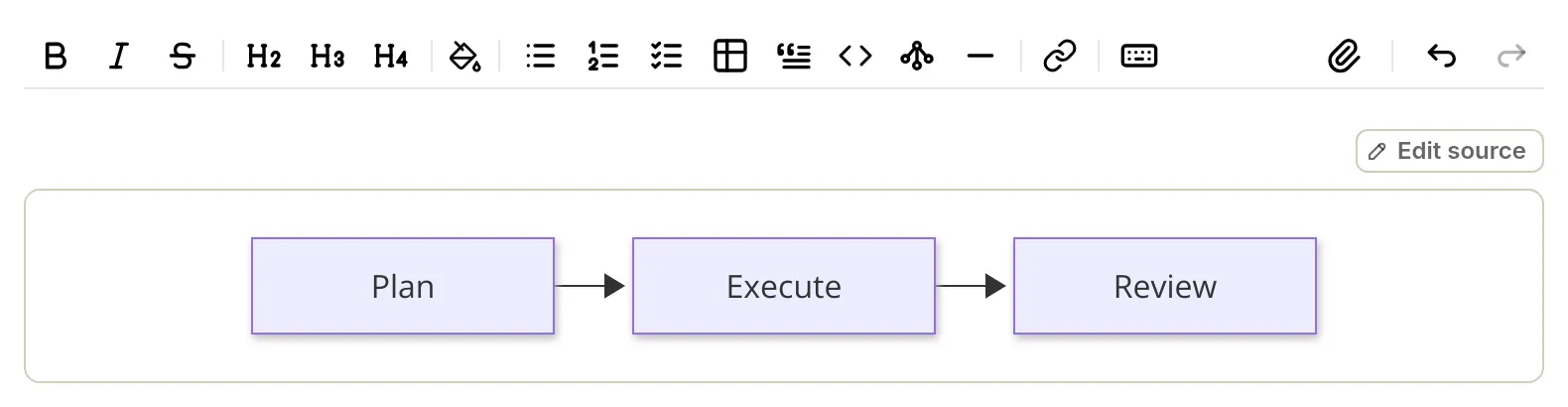
Use Mermaid to turn text into a diagram, such as a flowchart that shows how work moves from planning to review. You can add diagrams to new or existing documents and other places that use Operately’s rich text editor, such as descriptions, discussions, and comments.
Insert a diagram from the toolbar#
Section titled “Insert a diagram from the toolbar#”- In the body of the document, place your cursor on an empty line where you want the diagram.
- Click Insert diagram, the icon with connected dots in the editor toolbar. If you use the compact toolbar, open More formatting options first.
- Type or paste your Mermaid source into the block. If you use the example below, copy just the two lines starting with
flowchart LR. - Click Preview to see the diagram.
Paste a complete Mermaid block#
Section titled “Paste a complete Mermaid block#”Copy the whole example below, including the opening and closing backticks. Paste it on an empty line in the document body with Ctrl+V or Cmd+V. Operately inserts the block and shows the diagram preview.
```mermaidflowchart LR Plan --> Execute --> Review```Start a diagram by typing#
Section titled “Start a diagram by typing#”At the start of an empty line, type ```mermaid and press Space. Enter the diagram source in the block that opens, then click Preview.
Edit and preview a diagram#
Section titled “Edit and preview a diagram#”While editing the document, click Edit source above the diagram to change its Mermaid text. Click Preview to see the result, then save your document.
If Operately shows This diagram could not be rendered., correct the source shown in the editor and click Preview again. Operately uses standard Mermaid syntax. For more diagram types and examples, see the Mermaid syntax reference.
Light and dark mode#
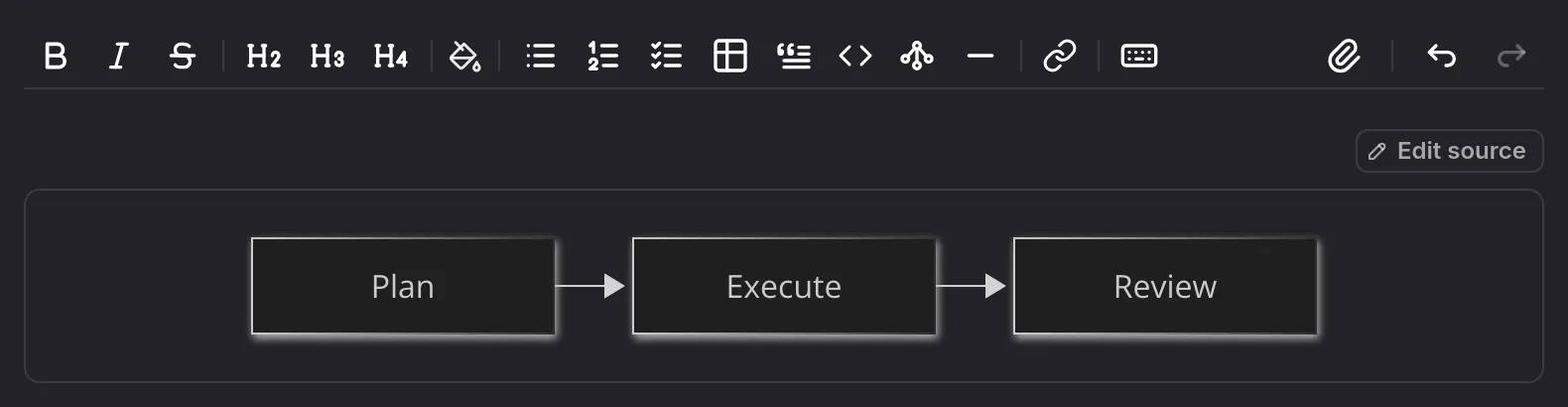
Section titled “Light and dark mode#”By default, diagram previews follow your Operately appearance setting.